Hi guys, in this post I will be installing GOAD on a nested virtualization Ubuntu server. This is not the recommended way to install it, but I don’t have enough RAM on my other computer and it’s still viable (I already tested it with GOAD Light a few months ago). If you have enough RAM, I recommend installing it on a bare metal machine, the performance will be much better and the process is exactly the same. This installation is only valid for Linux machines, but GOAD can also be installed on Windows.
I will be doing the NHA challenge, which is a CTF-style challenge that will be perfect to get my hands on Windows again, since I haven’t touched it in months. The other GOAD variations are intended as labs to practice vulnerabilities, not to solve them as a CTF. In the future, I will do the full GOAD and SCCM resolutions and I will also post them.
I’ll be doing this challenge to prepare for the OSCP certification, which I plan to take in a few months. This lab goes beyond OSCP knowledge, but I enjoy doing everything that goes beyond, like AV Evasion, AWS, etc. It will be a good way to refresh these things as I haven’t touched them in ages.
Prerequisites
- CPU capable of Nested Virtualization (I will be using Virt Manager to create the VM)
- 24GB RAM
- 115GB Disk Space (preferably SSD)
- Linux host (in my case Ubuntu Server 22.04 LTS)
Checking if Nested Virtualization is enabled
We can check if our CPU supports nested virtualization with this bash command:
egrep -c '(vmx|svm)' /proc/cpuinfo
# Output >0 => supported
To check if Nested Virtualization is enebled we can do it this way:
# Intel CPU
cat /sys/module/kvm_intel/parameters/nested
# Expected Output => Y

# AMD CPU
cat /sys/module/kvm_amd/parameters/nested
# Expected Output => 1
In my case I have an Intel CPU:
Creating the Nested VM with Virt Manager
This is what the VM looks like before creation with Virt Manager, note the Customize configuration before install option checked.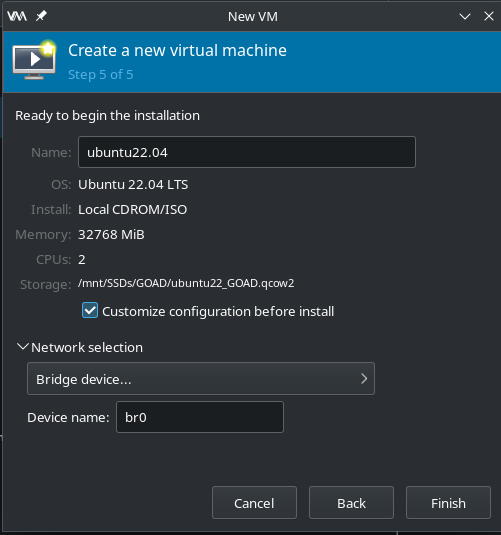
goad@goad:~$ cat /sys/module/kvm_intel/parameters/nested
Y
This means we can install a hypervisor and use Virtual Machines inside this Virtual Machine.
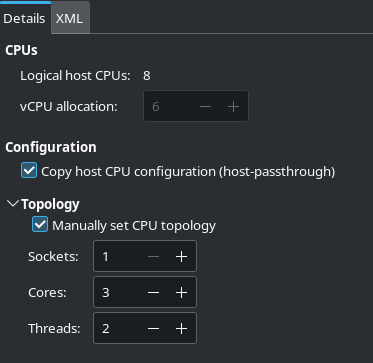
The recommended CPU topology I found works best is with max Cores and 2 Threads. In my case, I have 8 logical host CPUs, so the topology is as follows:
GOAD Installation
I first did an update and upgrade and created an external Snapshot.
sudo apt update -y && sudo apt upgrade -y
External snapshot:
virsh snapshot-create-as "ubuntu22.04" "virtualbox_install" --disk-only
This creates a new disk called ubuntu22_GOAD.virtualbox_install where all changes from now on will be written. If we want to restore the snapshot, we just have to switch the disk to the original one (ubuntu22_GOAD.qcow2).
Name explanation:
- ubuntu22_GOAD: VM qcow2 disk name
- ubuntu22.04: VM domain name
- virtualbox_install: Snapshot name
VirtualBox Installation Commands
I use the Docker variant of the installer. The only difference is that the Docker variation uses a container to launch the Ansible playbooks, while the normal variant uses the host machine to launch them. Out of both installations I’ve done, the one that worked best for me was the Docker variant.
# Install Docker
sudo apt-get install ca-certificates curl
sudo install -m 0755 -d /etc/apt/keyrings
sudo curl -fsSL https://download.docker.com/linux/ubuntu/gpg -o /etc/apt/keyrings/docker.asc
sudo chmod a+r /etc/apt/keyrings/docker.asc
# Add the repository to Apt sources:
echo   "deb [arch=$(dpkg --print-architecture) signed-by=/etc/apt/keyrings/docker.asc] https://download.docker.com/linux/ubuntu \
  $(. /etc/os-release && echo "${UBUNTU_CODENAME:-$VERSION_CODENAME}") stable" |   sudo tee /etc/apt/sources.list.d/docker.list > /dev/null
sudo apt-get update
sudo apt-get install docker-ce docker-ce-cli containerd.io docker-buildx-plugin docker-compose-plugin

# Add user to Docker group
sudo usermod -aG docker goad

# Install python3-venv
sudo apt install python3-venv
# Install virtualbox
sudo apt install virtualbox
# Install vagrant
wget -O- https://apt.releases.hashicorp.com/gpg | sudo gpg --dearmor -o /usr/share/keyrings/hashicorp-archive-keyring.gpg
echo "deb [signed-by=/usr/share/keyrings/hashicorp-archive-keyring.gpg] https://apt.releases.hashicorp.com $(lsb_release -cs) main" | sudo tee /etc/apt/sources.list.d/hashicorp.list
sudo apt update -y && sudo apt install vagrant -y
# Install Vagrant Plugins
vagrant plugin install vagrant-reload vagrant-vbguest winrm winrm-fs winrm-elevated
# Add some dependencies
sudo apt install git sshpass lftp rsync openssh-client
# Reboot just in case
sudo reboot now

# Clone repository
git clone https://github.com/Orange-Cyberdefense/GOAD.git
cd GOAD

# verify installation
./goad_docker.sh -t check -l NHA -p virtualbox

# install
./goad_docker.sh -t install -l NHA -p virtualbox
# This will take a LONG time
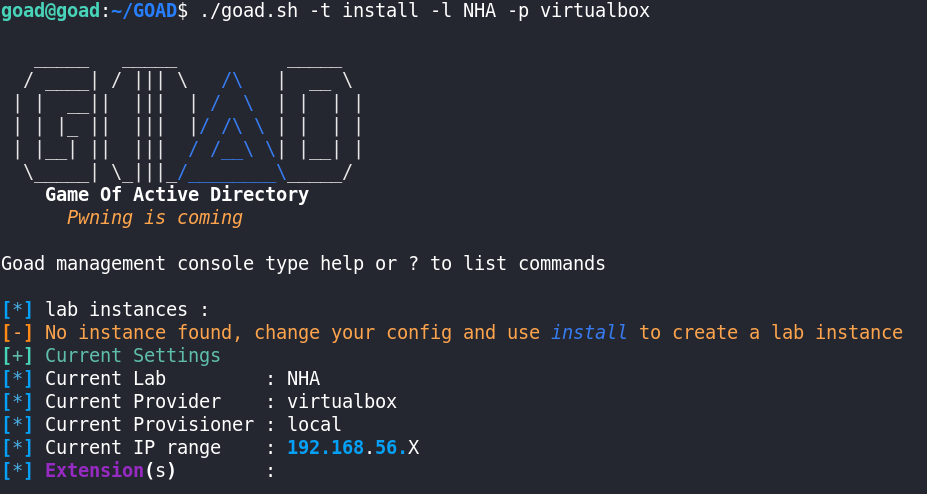
After lots of timeouts and troubleshooting, the lab was successfully installed. To solve errors, I just ran the installation again with the same command. GOAD tracks progress itself, resuming the installation where it failed. I recommend using GOAD’s interactive console instead of the previous command.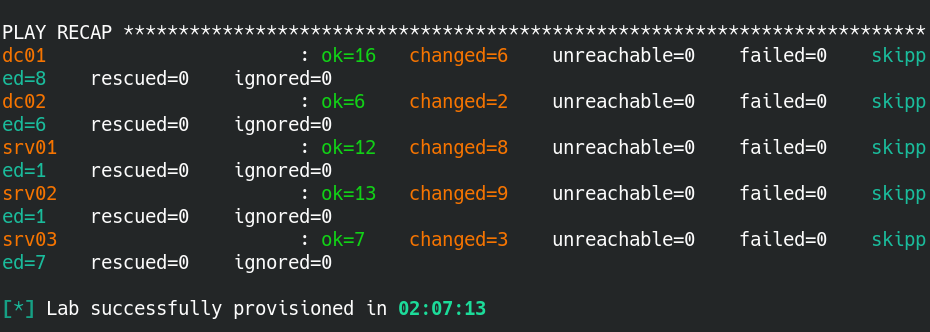
sudo ./goad_docker.sh
NHA/virtualbox/docker/192.168.56.X (a285fd-nha-virtualbox) > help
NHA/virtualbox/docker/192.168.56.X (a285fd-nha-virtualbox) > install
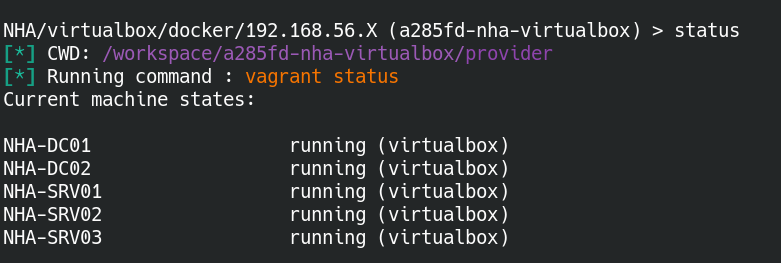
After checking that all is running correctly I proceeded to take an snapshot of the lab.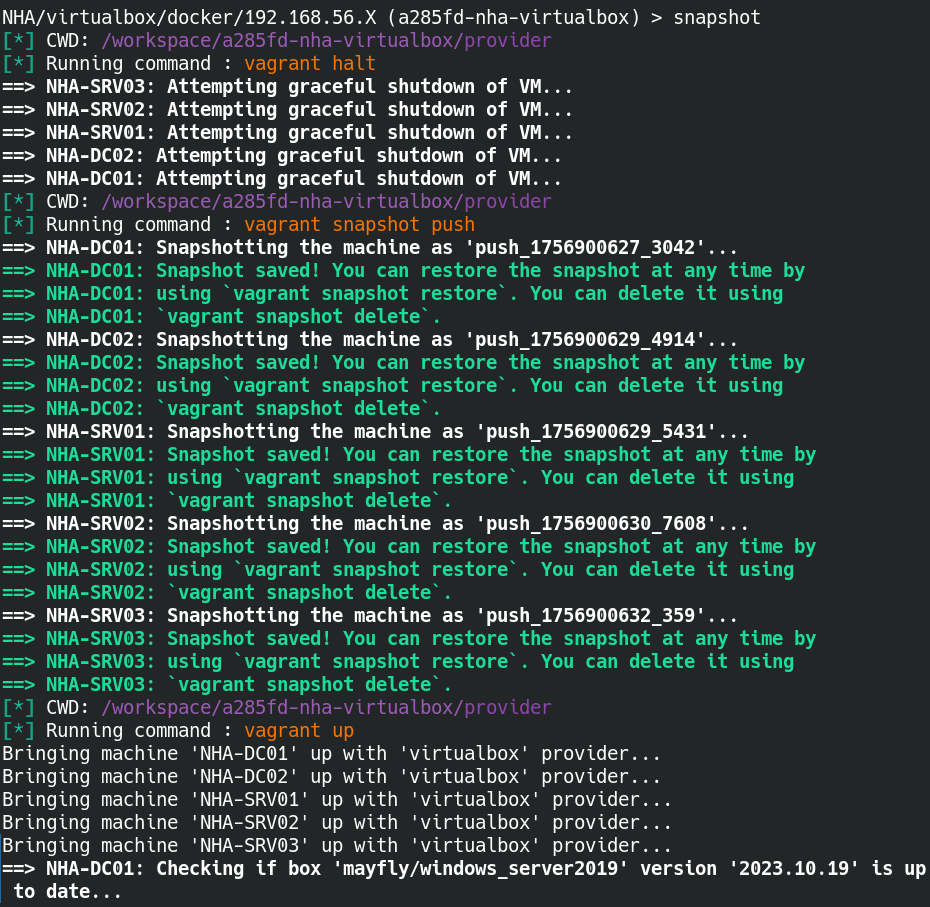
Network configuration
To access the 192.168.56.0/24 network (VirtualBox host-only range for GOAD VMs) from my Kali VM at 192.168.1.41, I need to configure the Ubuntu host (192.168.1.73) as a router between the local LAN (192.168.1.0/24) and the host-only network. This involves enabling IP forwarding on Ubuntu and adding a static route on Kali. This allows us to do all attacks that can be performed on a directly connected local network (like using Responder, NTLMRelay, etc.).

GOAD VM
sudo su
echo 'net.ipv4.ip_forward=1' >> /etc/sysctl.conf
sudo sysctl -p
sudo iptables -t nat -A POSTROUTING -s 192.168.1.0/24 -d 192.168.56.0/24 -j MASQUERADE
# If you want it persistent
# sudo apt install iptables-persistent
# sudo netfilter-persistent save
Kali VM
sudo ip route add 192.168.56.0/24 via 192.168.1.73
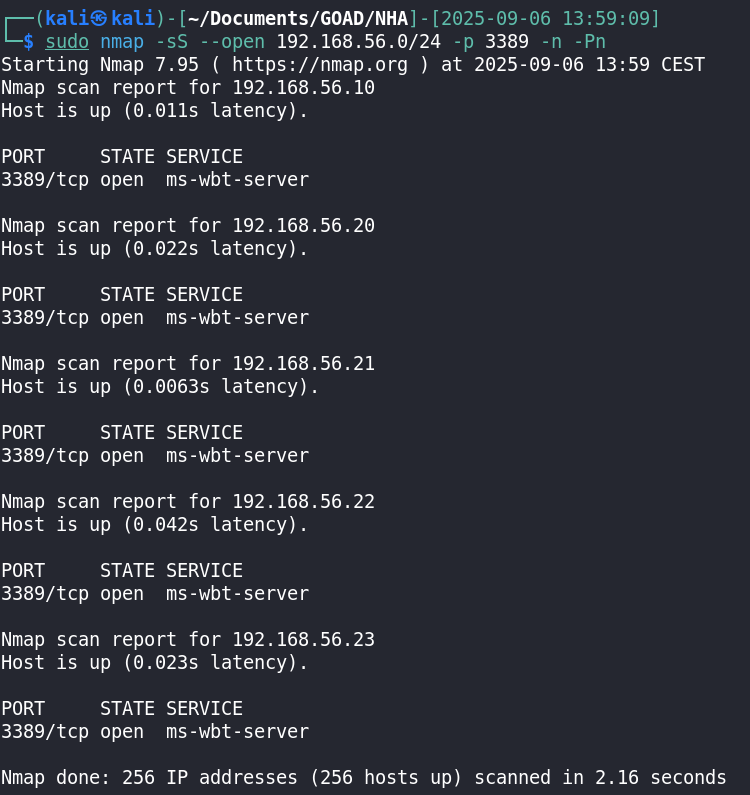
After applying the configuration we can successfully access the GOAD subnet.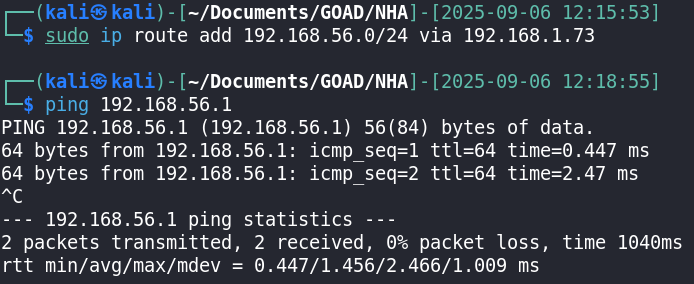
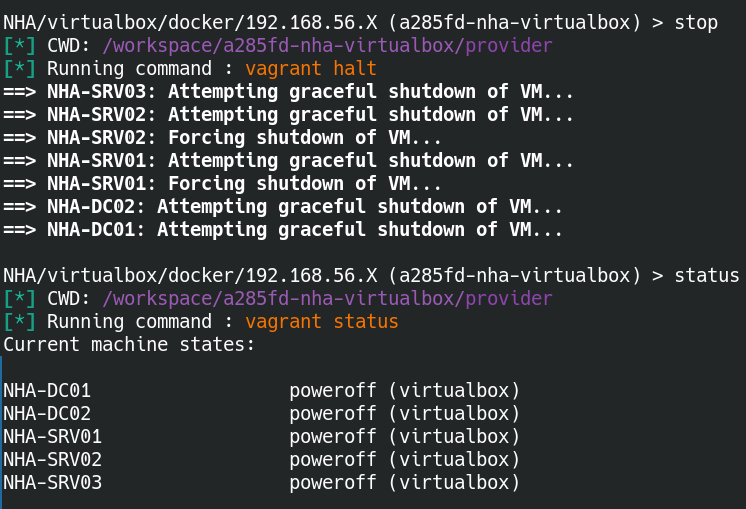
To stop the lab we can use the stop command.